Shadcn Studio Pages Documentation
Complete, pre-designed web pages that can be added to your project in a single command and customized to fit your brand.
In recent shadcn releases, an update was introduced to the tooltip component to address an issue related to TooltipProvider. As a result of this change, projects using the Tooltip component without an explicitly defined TooltipProvider may now encounter errors across affected blocks and components.
To resolve this, please ensure that TooltipProvider is added at the appropriate level in your layout file.
What does the Page mean?
A Page is a complete, ready-to-use layout crafted by professional designers and developers, composed of several Shadcn Studio blocks arranged in sequence. Instead of assembling a screen section by section, you can drop in an entire landing page, about page, or pricing page at once, ensuring consistency and speeding up the development process.
How to effectively use the pages?
Before using the Shadcn Studio Pages, make sure that you've installed shadcn in your project by following the official installation guide.
Once your project is ready, you can begin integrating pages by following ways:
Visit the Pages page to explore categories like Landing, About, Pricing, Blog, Contact, and more.


Copy the Code
- Choose your desired page (e.g., Landing Page).
Click the Code tab to view the different files that make up the page.
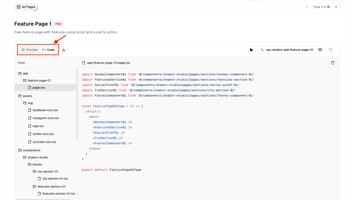
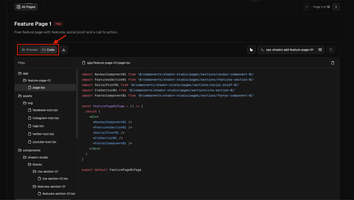
- Copy the code and paste it into your project, following the folder structure shown on the left in the above image.


Using Shadcn CLI
The Shadcn CLI is the fastest way to add a full page to your project. It handles everything automatically:
- Downloads every block that makes up the page
- Installs required dependencies
- Sets up proper file structure
- Configures all necessary imports
Some components in pages may still appear rounded when using the Lyra or Sera styles/themes, even though these themes are designed to have a square look. This happens because some cards or buttons use custom styling to make the pages look good across different styles/themes
If you prefer to enforce a fully square appearance while using the Lyra or Sera themes, you have the following options:
- Remove rounded utility classes from installed pages (Recommended):
If you only want specific pages to follow the square theme while preserving rounded corners elsewhere in your project, you will need to manually remove the
rounded-*utility classes from the installed page/components. - Apply a global border radius override
Update the
Please note that this will remove border radius across the entire blocks/templates/project.radiusvariable to0in yourglobals.cssfile:
Using Download Button
Perfect for offline work or when you want full control over file organization. Here's how:


Step 1: Download the ZIP
- Find your desired page
- Click the Download button
- Save the ZIP file to your computer
Step 2: Extract Files
- Unzip the downloaded file
- You'll find folders like:
components/,lib/,assets/ - Each folder contains the necessary files for the page
Step 3: Move to Your Project
- Copy files to your project's corresponding folders
- Update import paths if your project structure is different
Step 4: Install Dependencies
- Check the included imports.
- Install the dependencies using in the files.
Step 5: Test Integration
- Import the page in your desired route/component
- Run your development server
- Check for any missing imports or styling issues
Aligning Chart Colors with Shadcn Studio
By default, shadcn provides its own chart color palette. However, these default colors may not compatible with our design system used in our pages. To ensure your charts visually align with the pages design, follow the steps below to override the chart color variables.
Step 1: Open the Theme Customizer
Access the Theme Customizer from the right-top of navigation
Step 2: Reset the Customizer (Important)
Make sure the Theme Customizer is in its default (reset) state before proceeding.
Step 3: Copy the CSS Variables
- Click the Copy button (located next to the Undo/Redo buttons).
- A dialog will open.
- Navigate to the second tab: Step 2 - CSS Variables.
Step 4: Use the Provided Chart Variables
You will find the following CSS variables:
Step 5: Replace These Variables in Your Global Styles
If you've already set up shadcn, replace the existing --chart-* variables in your global CSS file with the ones above. If not, simply paste them into your global.css. This will override the default chart colors and match them with the pages theme
Previewing Pages
See exactly how a page looks before adding it to your project:
- Switch between Desktop, Tablet, and Mobile to check the responsive layout
- Toggle between the Radix UI and Base UI implementations
- Click Open in New Tab to view the page full-screen


Filtering and Finding Pages
Shadcn Studio provides a search box and a pricing filter to help you quickly find the perfect page for your project. Both are available on the Pages page and on each category page.
Search
Type in the search box to instantly narrow the list down to pages matching your query.
Filter by pricing
- Select All to browse every available page
- Choose Premium to explore Pro pages
- Pick Free to see only the pages you can use for free


How to customize the pages?
Because every page is built from Shadcn Studio blocks, customizing it is easy with shadcn/ui and TailwindCSS. Here's how you can do it:
1. Using Shadcn components:
Shadcn offers predefined props for common UI elements like size, variant, many more.
For example:
Change Button size: You can change button size using props like
2. Using TailwindCSS:
TailwindCSS provides utility classes to easily adjust the spacing, padding, margin, and other layout properties.
For example:
Padding: You can adjust padding using classes like
p-2,p-4(increasing the padding).Margin: Similarly, you can adjust margin using classes like
m-2,m-4(increasing the margin).Gap: You can also use the
gapclass to adjust the space between elements within a flex or grid layout.
3. Add or remove sections
Since a page is a sequence of blocks, you can rearrange, duplicate, or delete any section to shape the page around your content. Explore the individual sections on the Blocks page.
4. Update Icons
Pages use Lucide Icons from lucide-react, but you can also use any other icon of your choice.
With these simple steps, you can quickly adjust and style your pages using both shadcn/ui and TailwindCSS classes without needing to write extra CSS.
How to Remove Animations from Pages
Since every page is built from Shadcn Studio blocks, removing or replacing the animated components works exactly the same way as it does for blocks. For the full list of standalone animations you can remove and the static alternatives you can swap in, refer to the Blocks documentation.