Supporting RTL (right-to-left) languages in a Next.js application looks easy at the page level:
<html dir="rtl">That flips the document, and not much else. In a real application you still have to deal with:
- existing shadcn/ui components already installed in your project,
- left/right Tailwind classes,
- directional icons,
- animations,
- dialogs, popovers, and other floating components,
- switching between RTL and LTR languages dynamically.
The confusion usually shows up as one specific complaint:
“I added
rtl: trueto my shadcn configuration, but my existing components still behave like LTR.”
That is expected. Enabling RTL only affects components the CLI generates or migrates from that point on - the files already sitting in your project keep whatever classes they were written with. This guide covers adding RTL to an existing Next.js and shadcn/ui project: what the CLI handles for you, what it doesn’t, and how to serve both directions from the same app.
How RTL Support Works in shadcn/ui
shadcn/ui handles RTL differently from most component libraries. Rather than shipping RTL-ready classes to everyone, the CLI rewrites components when you enable RTL support, converting physical CSS classes into logical ones. So:
ml-4
mr-2
left-0
text-left
are converted into logical equivalents:
ms-4
me-2
start-0
text-start
Logical classes resolve against the document direction, so the same file works in both. The full set of transformations is wider than margins and padding:
| LTR class | RTL-compatible class |
|---|---|
ml-4 | ms-4 |
mr-4 | me-4 |
left-0 | start-0 |
right-0 | end-0 |
text-left | text-start |
space-x-4 | space-x-4 rtl:space-x-reverse |
It also handles directional icons, adding an rtl: variant so arrows and chevrons flip with the layout:
<ArrowRightIcon className="rtl:rotate-180" />That covers arrows, chevrons, pagination controls and navigation icons - anything whose meaning depends on which way it points.
Enable RTL Support in shadcn/ui
RTL support is controlled through components.json, so this assumes shadcn is already initialized in your project - if not, set it up first.
Add:
{
  "rtl": true
}
Alongside the rest of your config, that looks like:
{
  "$schema": "https://ui.shadcn.com/schema.json",
  "style": "base-nova",
  "rtl": true
}
When RTL is enabled, future component additions use RTL-aware transformations.
The docs note that automatic transformation is intended for projects created with the newer styles. In practice the class transformation is less restrictive than that reads: on a legacy new-york project, migrate rtl still converted existing components, and newly added ones came out with logical classes too.
One thing legacy projects genuinely cannot do is install the direction component. shadcn add direction resolves per style, and the new-york and default registries do not include it. Those projects run on Radix, so import the provider from Radix directly instead:
import { Direction } from "radix-ui"

<Direction.DirectionProvider dir="rtl">{children}</Direction.DirectionProvider>
However, this does not automatically update components that already exist in your project.
For example, if you already have:
components/
└── ui/
    ├── button.tsx
    ├── dialog.tsx
    └── sidebar.tsx
those files keep their existing classes until you migrate them.
Migrating Existing shadcn/ui Components to RTL
If your project already contains shadcn components - see adding shadcn to an existing project if you are retrofitting one - use the RTL migration command:
npx shadcn@latest migrate rtlFor pnpm:
pnpm dlx shadcn@latest migrate rtlIt sets rtl: true in components.json, converts physical classes to logical ones across your existing files, and adds rtl: variants where a class has no logical equivalent. In practice <div className="ml-4 text-left"> comes back as <div className="ms-4 text-start">, applied across every component in the directory.
You can scope it to a single file:
npx shadcn@latest migrate rtl src/components/ui/button.tsxor pass a glob:
npx shadcn@latest migrate rtl "src/components/ui/**"If you do not provide a path, the CLI migrates components from your configured ui directory - and only that directory. Anything you wrote yourself elsewhere is left alone, which is easy to miss. Point it at the project root to catch those too:
pnpm dlx shadcn@latest migrate rtl .The same transformation then runs over your own components, provided they use the Tailwind utilities it knows how to rewrite. A custom card written with ml-4 pr-6 text-left border-l-2 comes back as ms-4 pe-6 text-start border-s-2, exactly as it would inside ui. Scope it to a feature directory if a whole-project pass is more than you want in one commit.
What Changes Automatically and What Does Not?
Knowing where that line sits saves most of the debugging.
Automatically handled
Once RTL is enabled and your components are migrated, the CLI takes care of positioning and spacing (left-2 becomes start-2, pr-4 becomes pe-4), text alignment (text-right becomes text-end), and the icon variants shown above.
Still requires manual review
What it cannot reason about is anything you wrote yourself: custom components, hand-written Tailwind classes, custom animations, and layouts complex enough that direction is implied rather than declared. Those need a real look.
It is worth being clear about what the command is: a predictable class rewrite, not an understanding of your interface. It maps physical utilities to logical ones and adds rtl: variants where no logical equivalent exists. It has no view on custom layout logic, third-party components that ship their own styles, animations with direction baked into keyframes or transforms, or anything your application decides at runtime. A clean migration means the classes are correct; it does not mean the UI is. Run it, then look at the result.
Three shadcn components are also not migrated by the CLI at all - Calendar, Pagination, and Sidebar. The RTL documentation lists them as components that require manual review, and migration does not guarantee they will behave correctly in every application. Their own documentation pages carry an RTL note, but it mostly points back to the main RTL guide rather than giving component-specific steps, so plan on checking them in context.
Sidebar repays the most attention, because direction shows up in four separate places. Check that it anchors to the correct edge on desktop, that the mobile drawer slides in from that same edge, that collapse and expand animations run the right way, and that chevrons and toggle icons point inward rather than staying stuck in their LTR orientation.
Setting Up RTL Direction in Next.js
Migrated components still need to be told which way the page runs, and this is the step people half-finish. The usual symptom is a page that looks correct - text right-aligned, spacing mirrored - while dropdowns still open toward the left and arrow keys move the wrong way.
That happens because direction lives in two places. dir="rtl" on <html> is what CSS reads, so it is what makes ps-* and end-* resolve to the right physical side. DirectionProvider is what your components read, and it drives the behaviour CSS cannot: keyboard navigation order, and which side a menu or popover opens on. Set the attribute alone and you get the first half without the second.
For a fully RTL application:
export default function RootLayout({
  children,
}: {
  children: React.ReactNode
}) {
  return (
    <html lang="ar" dir="rtl">
      <body>
        {children}
      </body>
    </html>
  )
}
That handles the CSS side. For the JavaScript side, add the direction component:
npx shadcn@latest add directionThen wrap your application:
import { DirectionProvider } from "@/components/ui/direction"

export default function RootLayout({
  children,
}: {
  children: React.ReactNode
}) {
  return (
    <html lang="ar" dir="rtl">
      <body>
        <DirectionProvider direction="rtl">
          {children}
        </DirectionProvider>
      </body>
    </html>
  )
}
Handling Dynamic RTL/LTR Switching by Locale
Most applications that need RTL are not permanently RTL - they serve a mix, and direction has to follow whichever language is active:
- English → LTR
- Arabic → RTL
- Hebrew → RTL
- Persian → RTL
In these cases, direction should change based on the current locale. If you already use a routing library such as next-intl or next-i18next, the active locale it exposes is the value to derive direction from - there is no separate direction state to manage.
The derivation itself is trivial - const direction = locale === "ar" ? "rtl" : "ltr" - and the value feeds both the document attribute and the provider. In an App Router layout that comes together like this:
// app/[lang]/layout.tsx
const RTL_LOCALES = ["ar", "he", "fa", "ur"]

export default async function RootLayout({
  children,
  params,
}: {
  children: React.ReactNode
  params: Promise<{ lang: string }>
}) {
  const { lang } = await params
  const direction = RTL_LOCALES.includes(lang) ? "rtl" : "ltr"

  return (
    <html lang={lang} dir={direction}>
      <body>
        <DirectionProvider direction={direction}>
          {children}
        </DirectionProvider>
      </body>
    </html>
  )
}
Both values come from the same source, so a request for /ar renders RTL and /en renders LTR without any client-side switching. In the App Router, params is a promise and must be awaited.
Using useDirection
If a client component needs to know the current direction - to pick an icon, or branch on placement - useDirection reads it back out of the provider:
"use client"

import { useDirection } from "@/components/ui/direction"

export function DirectionStatus() {
  const direction = useDirection()

  return (
    <p>
      Current direction: {direction}
    </p>
  )
}
It is a client-side hook, so any component calling it needs "use client" at the top. Server Components cannot use it at all - in a server-rendered layout, pass the direction value down from your locale logic instead of trying to read it.
RTL Fonts in Next.js
Layout is only half of it. A Latin-first font stack will render Arabic or Hebrew through whatever fallback the OS picks, which is where inconsistent letterforms and broken diacritics come from. Load a face that actually covers the script - Noto Sans Arabic is the usual starting point, and it pairs cleanly with Latin text in mixed content:
import { Noto_Sans_Arabic } from "next/font/google"

const font = Noto_Sans_Arabic({
  subsets: ["arabic"],
})
…then applied on the same element that carries direction:
<html lang="ar" dir="rtl" className={font.className}>Two details matter more than the import. Keep the subset list tight - arabic here - because next/font only ships the coverage you ask for, and pulling the full face for a UI that renders one script is wasted bytes. Then check your line heights: Arabic glyphs run taller than Latin at the same font size and carry diacritics above them, so the tighter leading-* values that look fine in English will crowd or clip. Headings and dense tables show it first.
If you serve both directions, wire the font through a CSS variable instead of className so the Latin and Arabic faces can swap per locale without any component knowing about it.
Dialogs, Popovers, and Portal Components
Floating components deserve extra testing because they are often rendered through portals.
For example:
<Popover>
  <PopoverTrigger>
    Open
  </PopoverTrigger>

  <PopoverContent>
    Content
  </PopoverContent>
</Popover>
There is a known issue in tw-animate-css where the logical slide utilities do not behave as expected, so the docs recommend passing direction explicitly to portal elements:
<PopoverContent dir="rtl">
  Content
</PopoverContent>
The same applies to components like:
- Tooltip
- Dialog
- Popover
This is the documented workaround while that issue is open, so it is worth re-checking after a CLI or animation-library update.
Common RTL Migration Problems
I added rtl: true, but nothing changed
Cause
components.json only affects future generated components.
Existing components still contain their original classes.
Fix
Run:
npx shadcn@latest migrate rtlAnimations move in the wrong direction
Cause
Custom animations you wrote yourself still carry physical directions, so slide-in-from-right keeps sliding from the right regardless of locale. It needs the logical form:
slide-in-from-endReview custom animation classes after migration.
How to Test RTL Properly
Checking that text is right-aligned proves almost nothing - it is component behaviour that breaks, not typography. You do not need to switch your browser or system language to start looking, though. Flip the document direction straight from the console:
document.documentElement.dir = "rtl"This is a genuinely useful shortcut, but it only exercises the CSS half. Logical properties resolve to the other side, so misaligned spacing and stray physical classes show up immediately. What it does not do is change what DirectionProvider reports - menus, keyboard navigation and floating placement keep following whatever direction the provider was handed at render.
So treat it as two passes. The console toggle finds layout bugs in seconds. Then load the real locale route, /ar or equivalent, and test the interactive parts there - that is the only way to catch the behaviour the provider controls.
Checklist:
Layout
- Sidebar placement
- Navbar alignment
- Card spacing
- Grid layouts
Forms
- Input alignment
- Labels
- Error messages
- Icons inside inputs
Navigation
- Breadcrumbs
- Pagination
- Dropdown menus
Interactive components
- Dialogs
- Popovers
- Tooltips
- Select menus
Visual direction
- Arrow icons
- Animations
- Loading indicators
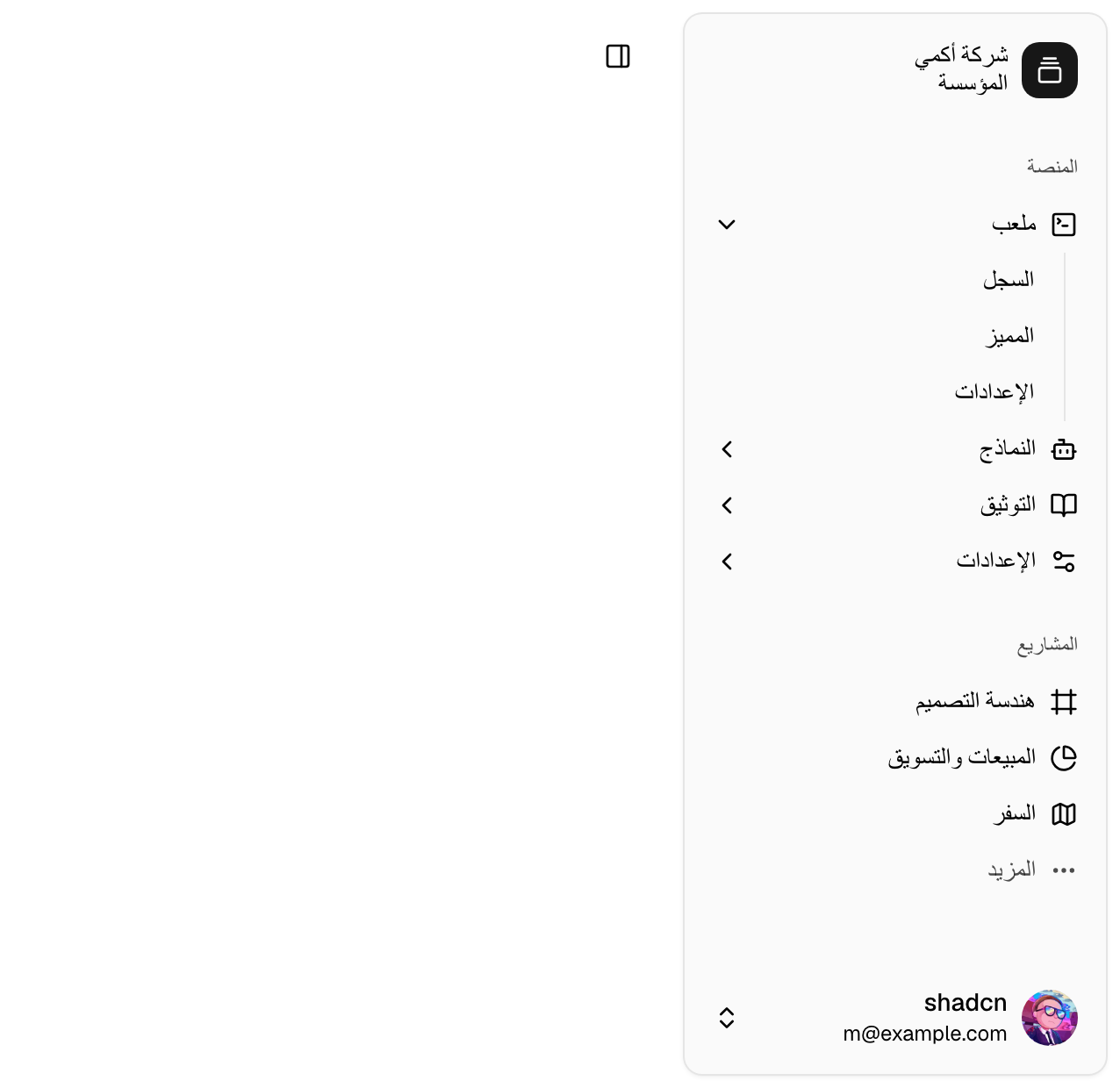
shadcn hosts a live RTL demo at ui.shadcn.com/view/base-nova/sidebar-rtl if you want to compare against a known-good implementation.
Conclusion
Adding RTL support to a shadcn/ui Next.js application is not just adding:
{
  "rtl": true
}
The real work is making sure your existing components, layouts, and directional elements understand the new direction.
For an existing project:
- Enable RTL:
{
  "rtl": true
}- Migrate existing components:
npx shadcn@latest migrate rtl- Add direction handling:
<DirectionProvider direction="rtl">- Test components that depend on visual direction.
The biggest advantage of shadcn/ui’s approach is that RTL support happens at the source-code level. Components remain editable, while the CLI handles most of the repetitive conversion work for you.