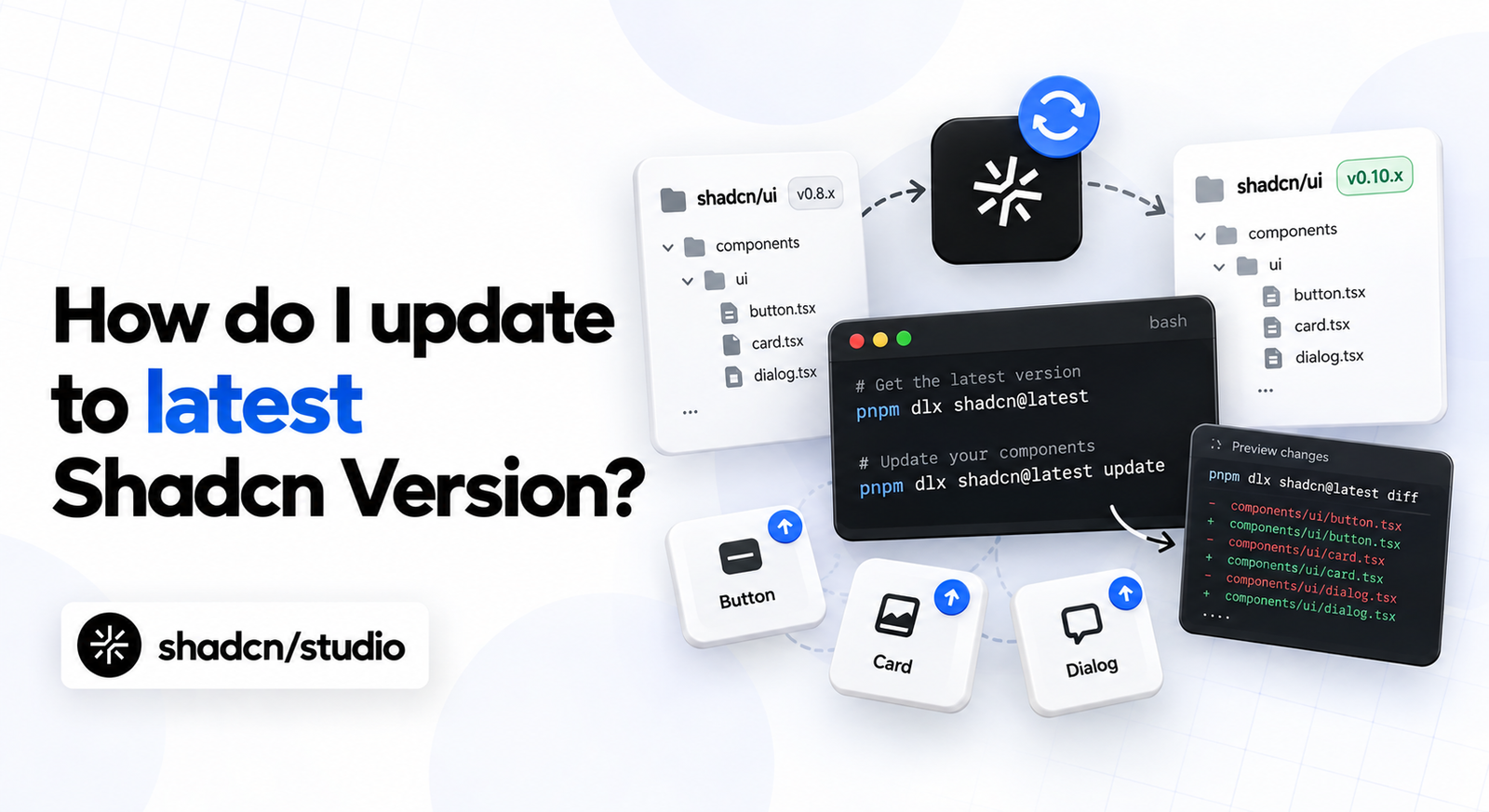
Update components safely without losing your customizations.
Updating shadcn/ui is not the same as upgrading a conventional component package. The components are source files inside your repository, so there is no single dependency version that replaces every Button, Dialog, or Sidebar automatically.
That ownership is one of shadcn/ui’s strengths, but it changes the update process. A safe update means comparing the current registry source with your local files, preserving deliberate customizations, applying structural migrations when required, and testing the result like any other code change.
This guide covers the complete workflow: running the latest CLI, updating one component, previewing changes with --dry-run, reviewing --diff and --view, and using the official cn, icons, base-color, rtl, and radix migrations.
Version note: The commands and options in this guide were checked against the current shadcn CLI documentation on October 1, 2026. CLI capabilities change, so use
shadcn@latestand check--helpbefore scripting destructive operations.
If you are starting a separate application instead of updating an established one, a Shadcn template can be safer than forcing an old codebase to adopt an entirely new component architecture at once.
If the goal is a visual refresh rather than a component-source update, use the Shadcn Theme Generator first. Changing tokens is usually less risky than overwriting customized component files.
What Does Updating shadcn/ui Actually Mean?
A typical package update changes a version in package.json, installs new code in node_modules, and leaves your application source alone. shadcn/ui works differently: the CLI copies component source into your project, and that source becomes yours.
As a result, “update shadcn/ui” can mean several different things:
| Goal | Correct tool |
|---|---|
| Run the newest CLI | Execute shadcn@latest with your package runner |
| Replace one local component with the latest registry version | shadcn add [component] |
| See what an update would touch | shadcn add [component] --dry-run |
| Compare local and registry code | shadcn add [component] --diff |
| Read incoming source without installing it | shadcn add [component] --view |
| Rewrite code across several files | shadcn migrate [migration] |
| Update npm dependencies used by your application | Use your normal package-manager update workflow |
Running the latest CLI does not update component files by itself. Likewise, updating React, Tailwind CSS, or a primitive package does not automatically replace the shadcn component source stored in your repository.
Before You Update Anything
Treat a shadcn update as a source-code change, because that is exactly what it is.
Start from a clean Git state:
git status
git switch -c chore/update-shadcn
If the working tree already contains intentional changes, commit or stash them first. A clean baseline makes the CLI’s edits easy to inspect and easy to reverse.
Also identify the files you have customized. Common changes include:
- New variants in
button.tsx - Project-specific animation classes in
dialog.tsx - Extra Sidebar state or keyboard behavior
- Accessibility fixes or application-specific ARIA attributes
- Imports from a local design-token package
- Changes to
components.jsonor global CSS variables
Do not assume that a clean Git diff means an overwrite is harmless. A component may contain important changes committed months ago.
Run the Latest shadcn CLI
You do not need a global CLI installation. Run the latest stable version through your package manager:
pnpm dlx shadcn@latest npx shadcn@latest yarn dlx shadcn@latest bunx --bun shadcn@latest The @latest tag asks the package manager to fetch the newest stable CLI release. With no subcommand, the CLI prints its available commands and options.
Your package-manager selection is remembered across every command selector in this article. Yarn Classic 1.x does not support yarn dlx; use npx shadcn@latest there or upgrade to a modern Yarn release.
To record the exact CLI version used in an update or bug report, run:
pnpm dlx shadcn@latest --version npx shadcn@latest --version yarn dlx shadcn@latest --version bunx --bun shadcn@latest --version Update Components Safely
Update One shadcn/ui Component
Updating components individually limits the blast radius and makes review easier:
pnpm dlx shadcn@latest add [component] npx shadcn@latest add [component] yarn dlx shadcn@latest add [component] bunx --bun shadcn@latest add [component] Replace [component] with the registry item you want. For example, update Button with:
pnpm dlx shadcn@latest add button npx shadcn@latest add button yarn dlx shadcn@latest add button bunx --bun shadcn@latest add button If the file already exists, the CLI asks whether it should overwrite the local version. Stop at that prompt unless you have reviewed the local changes and know replacement is safe.
You can request a non-interactive overwrite:
pnpm dlx shadcn@latest add button --overwrite npx shadcn@latest add button --overwrite yarn dlx shadcn@latest add button --overwrite bunx --bun shadcn@latest add button --overwrite Warning:
--overwritecan replace local variants, styles, props, accessibility work, and behavior. Reserve it for unmodified components or changes you are intentionally discarding.
To update more than one component in the same operation, provide multiple names:
pnpm dlx shadcn@latest add button dialog dropdown-menu npx shadcn@latest add button dialog dropdown-menu yarn dlx shadcn@latest add button dialog dropdown-menu bunx --bun shadcn@latest add button dialog dropdown-menu Reviewing a small related group is still easier than replacing the entire UI directory.
Preview an Update with --dry-run
Use --dry-run before changing an existing project:
pnpm dlx shadcn@latest add button --dry-run npx shadcn@latest add button --dry-run yarn dlx shadcn@latest add button --dry-run bunx --bun shadcn@latest add button --dry-run The CLI resolves the registry item and reports the proposed files and dependencies without writing them. A dry run answers the first important question: how large is this update?
Use it to check whether an apparently small component also pulls in utilities, hooks, dependencies, or related components. It is especially valuable in monorepos, where running from the wrong directory can target the wrong components.json.
--dry-run is a preview, not a compatibility test. It does not prove that the incoming component works with your local customizations.
Compare Local Code with --diff
Use --diff when the component already exists:
pnpm dlx shadcn@latest add button --diff npx shadcn@latest add button --diff yarn dlx shadcn@latest add button --diff bunx --bun shadcn@latest add button --diff The CLI compares the affected local files with the current registry source. Without a path, it displays a limited set of affected file diffs. To inspect one incoming file directly, pass its path:
pnpm dlx shadcn@latest add button --diff button.tsx npx shadcn@latest add button --diff button.tsx yarn dlx shadcn@latest add button --diff button.tsx bunx --bun shadcn@latest add button --diff button.tsx --diff runs without writing the update. Read the output in both directions:
- Registry additions may contain bug fixes, accessibility improvements, or new API support.
- Local-only lines may be intentional product behavior that an overwrite would remove.
For a customized component, manually port the useful upstream changes into the local file, then test the result. Replacing the whole file is not automatically the cleanest update.
Inspect Registry Source with --view
--view prints the incoming registry files without installing them:
pnpm dlx shadcn@latest add button --view npx shadcn@latest add button --view yarn dlx shadcn@latest add button --view bunx --bun shadcn@latest add button --view To display one file from a registry item, provide the file name:
pnpm dlx shadcn@latest add sidebar --view use-mobile.ts npx shadcn@latest add sidebar --view use-mobile.ts yarn dlx shadcn@latest add sidebar --view use-mobile.ts bunx --bun shadcn@latest add sidebar --view use-mobile.ts This is useful when you want to:
- Study a new implementation before deciding to update
- Copy one upstream fix into a heavily customized component
- Check imports and peer dependencies
- Compare related helper files
- Review generated code in a pull request without installing it locally
Like --diff, --view does not modify your project.
The Safest Component Update Workflow
For a component you have changed locally, use this order:
- Run
--dry-runto see the operation’s scope. - Run
--diffto compare local and registry code. - Use
--viewwhen you need the complete incoming source. - Port the required upstream changes manually.
- Run formatting, type checks, tests, and the production build.
- Exercise every interaction the component owns.
- Review the final Git diff before committing.
For an untouched component, you can use the same inspection steps and then allow the CLI overwrite. The review is still worthwhile because dependencies and related files can change.
Update Every Component: Possible, but Risky
The CLI supports updating or adding every available component:
pnpm dlx shadcn@latest add --all --dry-run npx shadcn@latest add --all --dry-run yarn dlx shadcn@latest add --all --dry-run bunx --bun shadcn@latest add --all --dry-run Remove --dry-run to apply the operation, but do that only when the repository is disposable or the existing components are known to be unmodified. For most production projects, updating selected components produces a smaller, more reviewable change.
Use Migrations for Structural Updates
Some upgrades cannot be expressed as “replace this component file.” They require coordinated changes to imports, packages, CSS utilities, theme variables, or configuration. The migrate command handles those transformations:
pnpm dlx shadcn@latest migrate [migration] npx shadcn@latest migrate [migration] yarn dlx shadcn@latest migrate [migration] bunx --bun shadcn@latest migrate [migration] The current CLI provides these migrations:
| Migration | What it changes |
|---|---|
cn | Replaces supported clsx, tailwind-merge, and cnfast usage with the cn package |
icons | Moves supported component icons from one icon library to another |
base-color | Rewrites theme variables and updates the configured base color |
rtl | Converts supported directional styles for right-to-left layouts |
radix | Replaces individual @radix-ui/react-* imports with the unified radix-ui package |
List the migrations available in the CLI version you are actually running:
pnpm dlx shadcn@latest migrate --list npx shadcn@latest migrate --list yarn dlx shadcn@latest migrate --list bunx --bun shadcn@latest migrate --list Commit your current work before running a migration. Migrations are designed to automate repeatable edits, not to remove the need for review.
Migrate Class Utilities with cn
The cn migration moves supported clsx, tailwind-merge, and cnfast usage to the cn package:
pnpm dlx shadcn@latest migrate cn npx shadcn@latest migrate cn yarn dlx shadcn@latest migrate cn bunx --bun shadcn@latest migrate cn For a standard shadcn utility, the result is conceptually similar to this:
- import { clsx, type ClassValue } from "clsx"
- import { twMerge } from "tailwind-merge"
-
- export function cn(...inputs: ClassValue[]) {
-   return twMerge(clsx(inputs))
- }
+ export { cn } from "cn"
Unlike the other migrations, migrate cn does not require components.json. It targets JavaScript or TypeScript projects using Tailwind CSS v4. Tailwind CSS v3 projects should keep the compatible tailwind-merge setup unless they are only applying a safe clsx migration.
Limit the migration to a path or glob while evaluating it:
pnpm dlx shadcn@latest migrate cn "src/**/*.{ts,tsx}" npx shadcn@latest migrate cn "src/**/*.{ts,tsx}" yarn dlx shadcn@latest migrate cn "src/**/*.{ts,tsx}" bunx --bun shadcn@latest migrate cn "src/**/*.{ts,tsx}" Unsupported patterns are left unchanged and reported for manual review.
Migrate to the Unified Radix Package
The radix migration rewrites individual Radix packages to the unified radix-ui package:
pnpm dlx shadcn@latest migrate radix npx shadcn@latest migrate radix yarn dlx shadcn@latest migrate radix bunx --bun shadcn@latest migrate radix For example:
- import * as DialogPrimitive from "@radix-ui/react-dialog"
+ import { Dialog as DialogPrimitive } from "radix-ui"
Run it on one component first when you want a smaller review:
pnpm dlx shadcn@latest migrate radix src/components/ui/dialog.tsx npx shadcn@latest migrate radix src/components/ui/dialog.tsx yarn dlx shadcn@latest migrate radix src/components/ui/dialog.tsx bunx --bun shadcn@latest migrate radix src/components/ui/dialog.tsx Or target the configured UI directory with a quoted glob:
pnpm dlx shadcn@latest migrate radix "src/components/ui/**" npx shadcn@latest migrate radix "src/components/ui/**" yarn dlx shadcn@latest migrate radix "src/components/ui/**" bunx --bun shadcn@latest migrate radix "src/components/ui/**" Afterward, check package.json and remove unused @radix-ui/react-* dependencies only when the codebase no longer imports them.
Change Icon Libraries with icons
The icons migration updates supported imports and JSX usage, installs the target package, and updates iconLibrary in components.json for a full-directory migration.
To move from Lucide to Tabler non-interactively:
pnpm dlx shadcn@latest migrate icons --from lucide --to tabler --yes npx shadcn@latest migrate icons --from lucide --to tabler --yes yarn dlx shadcn@latest migrate icons --from lucide --to tabler --yes bunx --bun shadcn@latest migrate icons --from lucide --to tabler --yes Supported library names are lucide, tabler, hugeicons, phosphor, remixicon, and the legacy radix icon library.
Test one component before migrating the whole directory:
pnpm dlx shadcn@latest migrate icons src/components/ui/command.tsx --from lucide --to tabler npx shadcn@latest migrate icons src/components/ui/command.tsx --from lucide --to tabler yarn dlx shadcn@latest migrate icons src/components/ui/command.tsx --from lucide --to tabler bunx --bun shadcn@latest migrate icons src/components/ui/command.tsx --from lucide --to tabler Or target a larger set:
pnpm dlx shadcn@latest migrate icons "src/components/ui/**" --from lucide --to tabler npx shadcn@latest migrate icons "src/components/ui/**" --from lucide --to tabler yarn dlx shadcn@latest migrate icons "src/components/ui/**" --from lucide --to tabler bunx --bun shadcn@latest migrate icons "src/components/ui/**" --from lucide --to tabler Scoped icon migrations do not update components.json. Icons without a known equivalent remain unchanged and are reported after the migration, so search for imports from the old library before removing its package.
Add Right-to-Left Support with rtl
The rtl migration sets rtl: true in components.json, replaces supported physical utilities with logical equivalents, and adds RTL variants where needed:
- <div className="ml-4 text-left">
+ <div className="ms-4 text-start">
Run it for the configured UI directory:
pnpm dlx shadcn@latest migrate rtl npx shadcn@latest migrate rtl yarn dlx shadcn@latest migrate rtl bunx --bun shadcn@latest migrate rtl Start with one file when evaluating the transformation:
pnpm dlx shadcn@latest migrate rtl src/components/ui/button.tsx npx shadcn@latest migrate rtl src/components/ui/button.tsx yarn dlx shadcn@latest migrate rtl src/components/ui/button.tsx bunx --bun shadcn@latest migrate rtl src/components/ui/button.tsx Or use a quoted glob:
pnpm dlx shadcn@latest migrate rtl "src/components/ui/**" npx shadcn@latest migrate rtl "src/components/ui/**" yarn dlx shadcn@latest migrate rtl "src/components/ui/**" bunx --bun shadcn@latest migrate rtl "src/components/ui/**" The migration changes component code; your application must still set the document direction correctly:
<html lang="ar" dir="rtl">Review directional icons, animations, Calendar, Pagination, Sidebar, and portal content manually. Automated transformation covers repeatable patterns, not every visual assumption in an application.
Change the Theme Base Color
The base-color migration rewrites theme variables in the global CSS file configured by components.json and updates the stored baseColor for future component installs.
To switch from Neutral to Zinc:
pnpm dlx shadcn@latest migrate base-color --from neutral --to zinc --yes npx shadcn@latest migrate base-color --from neutral --to zinc --yes yarn dlx shadcn@latest migrate base-color --from neutral --to zinc --yes bunx --bun shadcn@latest migrate base-color --from neutral --to zinc --yes If components.json already contains the correct current value, --to is enough:
pnpm dlx shadcn@latest migrate base-color --to zinc --yes npx shadcn@latest migrate base-color --to zinc --yes yarn dlx shadcn@latest migrate base-color --to zinc --yes bunx --bun shadcn@latest migrate base-color --to zinc --yes The current supported base colors are neutral, zinc, stone, mauve, olive, mist, and taupe.
Unlike the file-oriented migrations, base-color normally runs without a component path because it updates global theme configuration. Custom tokens that no longer match the source palette are left untouched and reported for review.
Migration Options You Should Know
| Option | Purpose |
|---|---|
--list | Display migrations available in the current CLI |
--yes | Skip confirmation prompts |
--from <name> | Specify the current icon library or base color |
--to <name> | Specify the target icon library or base color |
--cwd <path> | Run from another project or workspace directory |
--yes is useful in CI, but use it only after testing the exact migration and CLI version. Removing the prompt does not make the transformation safer.
Finish and Verify the Update
Updating shadcn/ui in a Monorepo
Run the CLI from the workspace that owns components.json. Alternatively, use --cwd:
pnpm dlx shadcn@latest add button --dry-run --cwd apps/web npx shadcn@latest add button --dry-run --cwd apps/web yarn dlx shadcn@latest add button --dry-run --cwd apps/web bunx --bun shadcn@latest add button --dry-run --cwd apps/web For a migration:
pnpm dlx shadcn@latest migrate rtl --cwd packages/ui npx shadcn@latest migrate rtl --cwd packages/ui yarn dlx shadcn@latest migrate rtl --cwd packages/ui bunx --bun shadcn@latest migrate rtl --cwd packages/ui Check the target workspace before dropping --dry-run. A repository can contain several independent shadcn configurations with different aliases, component bases, and global stylesheets.
Test the Update Before You Merge It
The CLI can confirm that it wrote files; it cannot confirm that your application still behaves correctly. After an update or migration:
- Review
git diffbefore formatting obscures the original edit boundaries. - Run the formatter and linter.
- Run TypeScript or framework-specific checks.
- Execute unit, integration, and end-to-end tests.
- Build the production application.
- Test keyboard navigation and focus restoration.
- Check light, dark, responsive, disabled, loading, and error states.
- Search for imports from packages you intend to remove.
Pay extra attention to compound components such as Dialog, Dropdown Menu, Select, Popover, Sidebar, and Calendar. Their behavior depends on more than how the initial render looks.
Common Update Mistakes
Treating the CLI version as the component version
shadcn@latest runs the newest CLI. It does not prove that the copied components in your repository match the newest registry source.
Running --overwrite before --diff
The fastest overwrite can create the slowest recovery. Compare first whenever a component may contain local work.
Updating the entire UI directory at once
A large diff makes behavioral regressions and deleted customizations harder to spot. Prefer a component or related group at a time.
Removing an old dependency too early
A scoped migration may leave imports elsewhere in the repository. Search the whole workspace before uninstalling the old package.
Assuming a migration handles application behavior
The RTL migration can transform utilities, but it cannot decide whether an arrow communicates direction or progression. The icon migration can change imports, but it cannot guarantee identical visual weight. Review the interface, not only the build output.
Where Updated Components Fit in a Larger UI
After updating the primitives, compare them inside real interface compositions rather than an isolated component preview. Production-ready Shadcn blocks can expose spacing, focus, and responsive regressions that are easy to miss in Storybook-sized examples.
Complete Shadcn pages are useful when an update affects navigation, forms, tables, or dialogs across an entire workflow. Testing at page level catches interactions between several updated components.
If designers maintain the source of truth for the interface, the Shadcn Figma Plugin can help keep design components aligned with the implementation after tokens, icon libraries, or component structures change.
A Practical Update Checklist
- Start from a clean branch.
- Run the current CLI with
shadcn@latest. - Confirm the project and
components.jsonyou are targeting. - Preview component updates with
--dry-run. - Compare customized files with
--diff. - Inspect full incoming source with
--viewwhen needed. - Update one component or related group at a time.
- Use a named migration for structural changes.
- Review files and dependencies left unchanged by scoped migrations.
- Run type checks, tests, accessibility checks, and a production build.
- Inspect the final Git diff before merging.
Conclusion
Updating shadcn/ui is a source-management task, not a routine package bump. The safest process is intentionally incremental: run the latest CLI, preview the registry operation, compare incoming and local code, apply only the changes you need, and use migrations for transformations that span several files.
For unmodified components, a reviewed overwrite can be efficient. For customized components, --dry-run, --diff, and --view give you the information needed to merge upstream improvements without losing product-specific behavior. Whichever path you choose, keep the update on its own branch and let tests—not the absence of CLI errors—decide whether it is ready to ship.