When you start a new React project, a challenge presents itself - how to design a user interface that looks nice and stays easy to keep up. Writing custom styles from nothing takes much time. Many popular libraries, for example Material UI, Chakra UI, or Bootstrap, offer prebuilt solutions which sometimes feel too strict or hard to completely change. This guide will show you how to use Shadcn UI in React?
Shadcn UI proceeds differently - it does not ship a fixed set of components. The project gives you usable, ready-to-use building blocks that you copy into your own project. This provides you full ownership of the code and the freedom to style and add to it as you want.
This guide is for:
-
Beginners who have a basic understanding of JavaScript but also React.
-
Developers who want to build modern interfaces quickly, without losing flexibility or control.
At the end of this guide, you will have a React project set up with Shadcn UI, and you will know how to install, use along with customize the tools. You will understand how to use Shadcn UI in React?
Prerequisites
-
Basic React knowledge → You should be aware of state, props, and components. No sophisticated ideas are required.
-
npm and node.js → Install the most recent LTS version by downloading it from nodejs.org. This provides you with the package manager and runtime that you will need for the duration of the tutorial.
-
A code editor → For its React and Tailwind extensions, Visual Studio Code is suggested.
-
Tailwind CSS → Tailwind is used for styling in Shadcn UI components.
Having these on hand will guarantee that you can proceed without encountering installation problems later.
What is React?
React is a JavaScript library used to build user interfaces for websites and web apps. It helps you create reusable components — like buttons, menus, or forms — that make your code cleaner and easier to manage. React uses a feature called the virtual DOM to update only the parts of the page that change, making apps faster. It also uses JSX, which lets you write HTML inside JavaScript. React is great for building interactive and dynamic websites.
What is Shadcn UI?
The Shadcn UI provides prepared UI components. Developers employ the components, such as buttons or inputs, in their React but also Tailwind CSS projects. Rather than a full UI library, a developer adds components individually. The developer also owns the code, so customization is simple. The UI builds with Radix UI for accessibility.
The Shadcn UI uses Tailwind CSS. Tailwind makes styling quick, adaptable along with consistent. With Tailwind’s utility classes, a developer easily customizes the appearance of a component in thecode. This prevents the need for extra CSS.
How to Use Shadcn UI In React with Vite and Tailwind CSS?
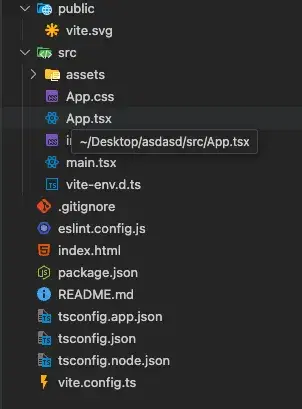
Step 1: Create a New React Project with Vite
Start by creating a new React project using Vite’s React + TypeScript template.
Open your terminal and run one of the following commands depending on your package manager:
# Using npm
npm create vite@latest

# Using pnpm
pnpm create vite@latest

# Using yarn
yarn create vite

# Using bun
bun create vite
Follow the prompts and select the React + TypeScript template.
Step 2: Add Tailwind CSS
Next, install Tailwind CSS along with its Vite plugin.
npm install tailwindcss @tailwindcss/viteOnce installed, replace the contents of your src/index.css file with:
@import "tailwindcss";Step 3: Configure TypeScript Path Aliases
Vite’s latest setup uses multiple tsconfig files. You need to configure path aliases in two files to get proper IDE support and avoid build errors.
Edit tsconfig.json
Add the baseUrl and paths inside compilerOptions like so:
{
  "files": [],
  "references": [
    { "path": "./tsconfig.app.json" },
    { "path": "./tsconfig.node.json" }
  ],
  "compilerOptions": {
    "baseUrl": ".",
    "paths": {
      "@/*": ["./src/*"]
    }
  }
}
Edit tsconfig.app.json
Add the same alias configuration for your editor:
{
  "compilerOptions": {
    // ...
    "baseUrl": ".",
    "paths": {
      "@/*": ["./src/*"]
    }
    // ...
  }
}
Step 4: Update vite.config.ts
To ensure Vite resolves the aliases correctly, update your vite.config.ts:
import path from "path";
import tailwindcss from "@tailwindcss/vite";
import react from "@vitejs/plugin-react";
import { defineConfig } from "vite";

export default defineConfig({
  plugins: [react(), tailwindcss()],
  resolve: {
    alias: {
      "@": path.resolve(__dirname, "./src"),
    },
  },
});
Also, install Node.js types for better compatibility:
npm install -D @types/nodeStep 5: Initialize shadcn/ui
Now you can set up shadcn/ui components.
Run the following command to initialize the shadcn configuration:
npx shadcn@latest initYou’ll be prompted to answer a few questions. For example:
Which color would you like to use as base color? › NeutralStep 6: Add Components
Start adding UI components easily using the CLI.
To add the Button component, run:
npx shadcn@latest add buttonThis will add the Button component files under your project.
Step 7: Use Components in Your App
Import and use the components in your React app like this:
import { Button } from "@/components/ui/button";

function App() {
  return (
    <div className="flex min-h-screen flex-col items-center justify-center">
      <Button>Click me</Button>
    </div>
  );
}

export default App;
Step 8: Start server
npm run dev
Btw, if you want to launch your startup faster, you can consider ready to use react native starter kit.
How to Customize Component with Tailwind CSS?
1. Using the props:
Most component have prebuild props to style them: for example in button there are:
Let’s test it, add variant in button as shown below
<Button variant="destructive">Click me</Button>
2. Using the Tailwind CSS Utility Classes:
<Button className='bg-transparent bg-gradient-to-r from-amber-600 via-amber-600/60 to-amber-600 [background-size:200%_auto] text-white hover:bg-transparent hover:bg-[99%_center] focus-visible:ring-amber-600/20 dark:from-amber-400 dark:via-amber-400/60 dark:to-amber-400 dark:focus-visible:ring-amber-400/40'>
Upgrade
</Button>
Tips for Beginners
-
Keep components modular → Put reusable UI in
components/ui. -
Use Tailwind cheatsheets → Learn classes like
flex,grid,p-4,rounded-md. -
Read Shadcn docs → Each component has examples.
-
Using prebuild UI Library : Such as shadcnstudio which is collection of copy/paste shadcn components
Final Thoughts
Shadcn UI is a perfect blend of flexibility and usability:
-
You learn Tailwind + React while using it.
-
You don’t rely on a “closed-box” library.
-
You can scale from small projects to production apps.
👉 Next steps:
-
Explore themes and dark mode.
-
Add more components (dropdowns, forms, tables).
-
Customize your design system.
Resources & References
That’s it! You now know how to set up Shadcn UI in React and build your first components.